
PDF View in WithAudio: The Real Page, Highlighted in Sync With Your Ears
Shipped in desktop v0.1.71 (March 2026), PDF View is the next step on top of the PDF support already in WithAudio. Instead of living only in a reformatted reading view, you can now listen while the original PDF layout stays on screen—and the sentence you are hearing is highlighted directly in that renderer.
That last part is easy to underestimate. Plenty of apps will read a PDF aloud, or show text in a separate pane. Synchronized sentence highlighting on the actual PDF page—fonts, columns, figures, and all—is much less common, and it is one of the capabilities WithAudio is genuinely proud of.
Honestly: this was enormous to build
Aside from the core idea of WithAudio itself, PDF View is among the most complicated features we have had to implement properly. It depends on multi step content mapping: turning what is essentially drawing instructions and glyphs into something we can line up reliably with speech timing. For the heavy lifting on structure, we use Docling. It gives us advanced PDF understanding (layout, reading order, and a unified document representation) that we then connect to WithAudio’s own playback and highlighting. PDFs were never designed to be semantic documents, so even with that foundation, every shortcut eventually meets a real-world paper or textbook that breaks it.
There are still edge cases and bugs. If something looks wrong on a particular file, telling us (or sharing the document when you can) directly improves the parser for everyone. We are also planning a deeper technical write-up later on how the pipeline and mapping work; this post is the user-facing story. Full detail for that release is in the extended release notes for March 2026.
What changed
Previously, importing a PDF sent its contents through a path that ended in Markdown-style reading which is great for a consistent listening workflow, but it meant losing the original typography and layout (and sometimes tables and figures in a useful form).
With PDF View, the document is rendered at full fidelity. Playback still uses the same listen-and-follow flow you expect from WithAudio, but the highlight sits on the PDF as audio moves forward. No parallel “plain text only” world you have to trust is the same document.
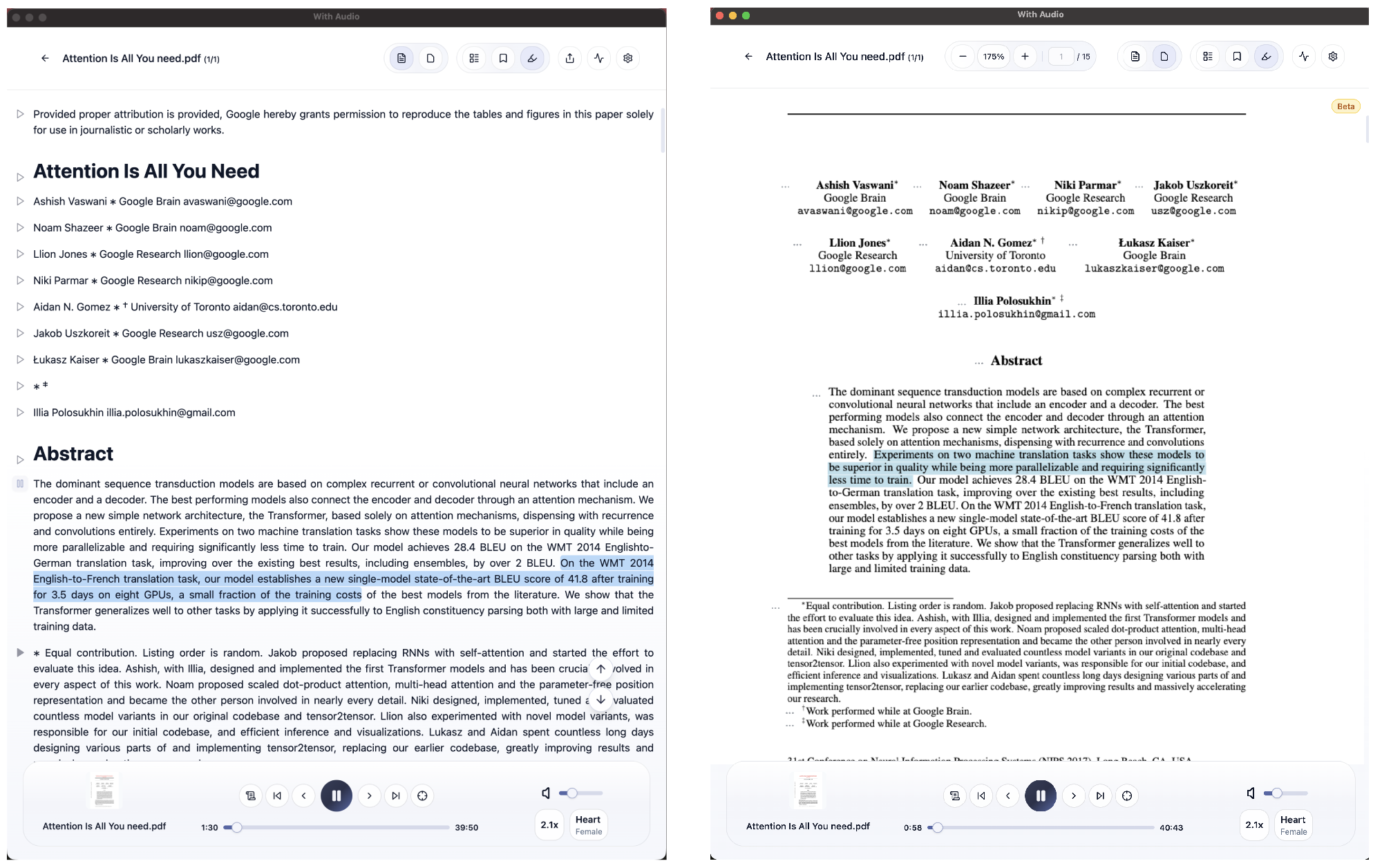
See it in action
The highlight tracks the spoken sentence, and the view scrolls to keep the active sentence visible so you are not hunting the page while you listen.
Watch on YouTube if you prefer opening the video in a new tab.
How to try it
- Import a PDF as you usually would.
- In the document toolbar, switch from Markdown to PDF View.
- Open the ⋯ menu on a paragraph and choose Play.

Markdown View is still there and remains the default for newly imported PDFs, so nothing changes until you opt into PDF View.
Import time (one-time)
First-time import does more work under the hood: a typical paper might land around ~20 seconds, while a very long book (500 pages) might be on the order of **5 minutes**. That work runs once per document; we use local models to interpret structure and layout, and we are actively improving speed on this path.
Limitations we are open about
Complex layouts, multi column pages, unusual typesetting, or messy exports—can still confuse any PDF derived text model. If highlighting drifts or misses a region, send us the file when possible; those reports are how the parser gets better.
Update to v0.1.71 or later, open a PDF, toggle PDF View, and press play. If you hit a rough document, we would love to hear what you saw—feedback is part of how this feature matures.